Sonix IPTV TV Installation Guide
Here are step-by-steps on how to install Sonix IPTV TV App on your favorite devices
Install Sonix IPTV TV on FireStick
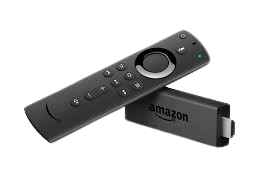
To install Sonix IPTV TV on Firestick, you can follow these steps:
- Go to the Firestick home screen and select “Settings” from the top menu.
- Select “My Fire TV” or “Device” (depending on your Firestick version).
- Select “Developer options” and turn on “Apps from Unknown Sources”.
- Go back to the home screen and select the search icon.
- Type in “Downloader” and select the Downloader app from the search results.
- Install the Downloader app and open it.
- In the Downloader app, enter the URL for the Sonix IPTV TV APK file: https://www.iptvsmarters.com/smarters.apk mV3
- Wait for the APK file to download and then select “Install” when prompted.
- Once the installation is complete, you can open Sonix IPTV TV from your Firestick home screen.
.
Install Sonix IPTV TV on Android

To install Sonix IPTV TV on your Android device. Please follow these steps:
- Enable “Unknown sources”: Before installing Sonix IPTV TV, you need to enable the installation of apps from unknown sources. To do this, go to your Android device’s Settings > Security > Unknown Sources, and toggle it on.
- Head on to your in-built web browser.
- Download the Sonix IPTV TV APK file: You’ll need to type in the Sonix IPTV TV APK file on your browser: https://www.iptvsmarters.com/smarters.apk
- Install the Sonix IPTV TV app: Once you’ve downloaded the APK file, locate it in your device’s file manager or Downloads folder. Tap on the file to start the installation process. Follow the on-screen instructions to complete the installation.
- Launch the Sonix IPTV TV app: After the installation is complete, you can find the Sonix IPTV TV app in your device’s app drawer. Tap on the app icon to launch it.
- Sign in or create an account: If you already have an Sonix IPTV TV account, sign in with your credentials. If you don’t have an account, you’ll need to create one to access the content.
- Enjoy Sonix IPTV TV: Once you’re signed in, you can start enjoying the content available on Sonix IPTV TV.
.
Install Sonix IPTV TV on roku

How to Install Sonix IPTV TV on Roku With a Simple Trick
- Part 1: Enabling developer options on Roku.
- Part 2: Adding the IPTV Smarters Pro channel.
- Part 3: Downloading the IPTV Smarters package on your computer.
- Part 4: Installing IPTV Smarters on Roku.
- Part 5: Enter your provided Sonix IPTV TV login credentials on the Smarters app.
- Part 6: Enjoy Sonix IPTV TV: all done, now you can start enjoying content available on Sonix IPTV TV through the Smarters app on your Roku device.
Install Sonix IPTV TV on Appel (iphone, Ipad, Mac book...)
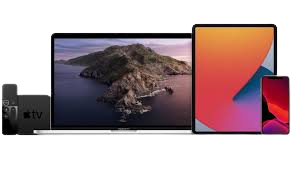
To watch Sonix IPTV TV on your iPhone via Smarters Pro, you will need to follow these steps:
- Download and install the Smarters Pro app from the App Store.
- Open the and click on the “Add New User” button.
- Enter your Sonix IPTV TV login credentials, including your username and password.
- Click on the “Add” button to save your login information.
- Once you have added your user account, click on the “Live TV” section of the app or ”VOD” to start watching Sonix IPTV TV channels and movies.
- That’s it, you have now installed Sonix IPTV TV on your iPhone.
If you encounter any issues while setting up or using the app, please contact Sonix IPTV TV‘s customer support team for assistance.